
TeamViewer Remote Control
TeamViewerBusiness
4.420.07K Reviews
- Version
- 15.80.207
- Installs
- 100.00M
- Age Rating
- Everyone
Screenshots

Our Review of TeamViewer Remote Control
 Analysis by Appyee
I understand the appeal of remote access in the first week: a computer that used to be out of reach suddenly feels close enough to check from a phone. That first successful connection can make TeamViewer Remote Control seem like an obvious keeper. In my view, though, the more useful question is whether it still earns space once the novelty wears off. It does for people who regularly help others or need to reach a computer away from home; it is less compelling if remote access is a once-a-year emergency.
Where it fits into a regular routine
TeamViewer is a business app from TeamViewer, but its usefulness is not limited to office IT. I can see it fitting into a freelancer’s routine: check a document on a desktop before a call, retrieve a file that was not synced to a phone, or help a client navigate a problem without asking them to describe every menu they see. Those jobs are small, but avoiding a trip back to the computer can make the app worthwhile over time.
For family support, the value is different. If someone regularly calls because a computer setting is confusing, a remote session can replace a long sequence of “click the thing at the top” instructions. It is still important to get the other person’s agreement and make sure they understand what you are doing. Remote control is powerful precisely because it can change what is happening on another device, so I would treat each session as hands-on help, not as a casual glance.
A practical way to decide whether it belongs on your phone
Before relying on it for an urgent moment, I would set up the devices I expect to reach and try a short connection while I am still near them. That gives me a chance to check that the intended computer is easy to identify and that the phone controls make sense on its screen. It is a better test than waiting until I am away from home and need a file immediately.
I would also decide what should stay on the remote computer and what should be copied to a cloud folder or sent to myself in advance. TeamViewer can be useful when a file was overlooked, but it is not a replacement for ordinary syncing when I need reliable access to the latest version throughout the day. Remote access depends on being able to reach the other device; a file already available on the phone does not.
How it compares with simpler alternatives
For moving a document between devices, cloud storage or email is often the calmer choice: the file is ready without steering a desktop from a small touchscreen. For a one-off support question, a phone call or a screen-sharing tool may be enough if the other person only needs to show what is wrong. TeamViewer makes more sense when the task requires actually operating the remote computer or moving files directly between devices.
That flexibility also brings more to learn than a basic file-sync app. On a phone, fine pointer movements and small desktop controls can take patience, especially when the task involves a long form or precise editing. I would use it to retrieve, inspect, and make straightforward changes, not as my first choice for extended desktop work. A laptop is simply more comfortable when the job demands sustained typing or careful selection.
What the habit costs
Remote access is only dependable when the devices and connection are ready at the moment I need them. If the computer is unavailable or I cannot establish a connection, the convenience disappears, which is why I would keep a backup route for genuinely time-sensitive documents. The app also asks for some attention to account setup and device organization. That is manageable, but it can feel like unnecessary upkeep if I rarely connect.
There is a learning curve in translating desktop actions to touch. A quick file retrieval is straightforward in concept; navigating a crowded desktop or switching between workspaces can be less natural on a phone. I would avoid assuming that every computer task becomes easy just because remote control is possible. The strongest routine is to use the phone for short, specific jobs and leave complex work for a full-size screen.
The app is free to download, while in-app purchases range from $0.99 to $610.80 per item, so I would check the available options before treating every use as covered by the free experience. It is rated for Everyone, has a 4.4 average from around 1.1 million ratings, and has passed 100 million installs. Those figures suggest broad adoption, but they do not tell me whether it suits a particular workflow; my decision would still come down to how often I need access and whether the setup fits my devices.
Getting Started with TeamViewer Remote Control
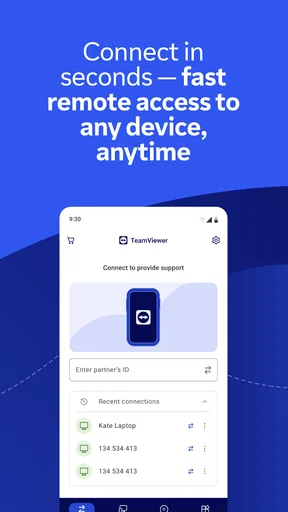
First things first, downloading the TeamViewer Remote Control app is a breeze. Available on both Android and iOS, it’s as simple as heading to your app store and hitting download. Once installed, you’re greeted with a clean and intuitive interface. No clutter, just straightforward options that make navigation easy even for tech newbies.
The setup process is pretty smooth too. You’ll need to create a TeamViewer account if you don’t already have one. But don’t worry, it’s free, and you can dive right into accessing devices remotely once you’re all set up. If you’re anything like me and get impatient with long registration forms, you'll appreciate how quick and painless this step is.
Features That Stand Out
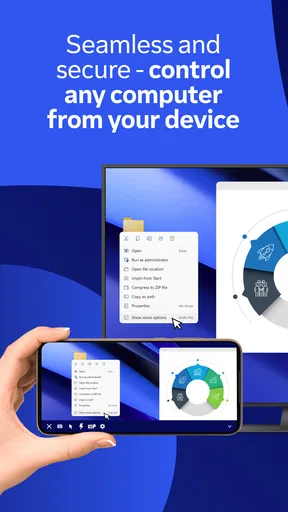
Now, let’s talk features because that’s where the magic happens. The app allows you to control your computer from anywhere. Yes, you heard that right. Whether you’re lying on a beach in Bali or stuck on a train commute, you can hop onto your desktop back home as if you were sitting right in front of it.
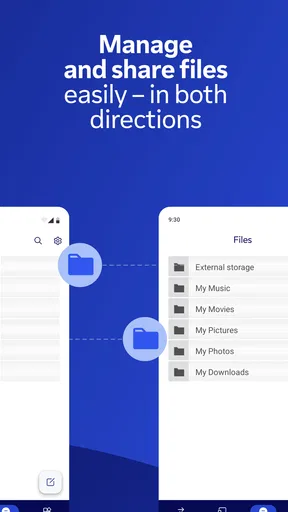
One of the standout features is the ability to transfer files between devices. Need that presentation you forgot to email yourself? No problem. Just tap away, and it’s yours. Plus, you can transfer files between Android and iOS devices, which is super handy for those of us living in a multi-platform world.
TeamViewer also supports multiple monitors, which is a lifesaver for anyone working with a dual-screen setup. You can easily switch between monitors with a simple swipe. And let’s not forget the app’s high-security standards. It uses 256-bit AES encryption, so your data is safe and sound.
Performance and Usability
Performance-wise, the app is pretty solid. The connection tends to be stable, and there's minimal lag, which is crucial when you’re trying to troubleshoot or manage files remotely. I’ve used it over both Wi-Fi and mobile data, and while Wi-Fi naturally offers a smoother experience, the app holds up decently well over 4G and even 3G networks.
Usability is where TeamViewer Remote Control shines. The app interface is intuitive, with clear icons and straightforward navigation. It’s designed so that even if you’re not a tech wizard, you can still manage to get things done without fuss.
Real World Applications
So, when would you actually use this app? Well, imagine you’re traveling and need access to a file on your home computer. Or say you’re helping a less tech-savvy friend or family member solve a computer issue from miles away. This app is ideal for freelancers and professionals who need to manage their work remotely.
It’s also a lifesaver for IT professionals who need to assist clients or colleagues quickly. The ability to connect to devices remotely means issues can be resolved in real-time, without the need for lengthy explanations over the phone.
Final Thoughts
All in all, TeamViewer Remote Control is a robust tool that’s worth having on your device. It bridges the gap between your mobile device and desktop, making remote access seamless and hassle-free. Whether you’re a professional needing to manage work tasks or someone who just needs to grab that important file from afar, this app has got you covered.
So, should you download it? Absolutely. It’s reliable, user-friendly, and packed with features that make remote access not just possible but easy. And let’s be honest, anything that makes our digital lives a little easier is a win in my book.
Verdict
Strengths of TeamViewer Remote Control
- Easy remote access from anywhere.
- Supports multiple platforms seamlessly.
- Secure connections with encryption.
- User-friendly interface for all levels.
- Free for personal use.
Limitations of TeamViewer Remote Control
- Requires stable internet connection.
- Limited features in free version.
- Can be complex for beginners.
- Occasional lag in remote sessions.
- Paid subscription can be costly.
Similar Picks in This Category
View All
LinkedIn: Community & Network
LinkedIn3.8

Zoom Workplace
zoom.com4.1

Microsoft Teams
Microsoft Corporation4.6

Meta Business Suite
Meta Platforms, Inc.4.6

Webex Meetings
Cisco Systems, Inc.4.5

File Commander Manager & Vault
MobiSystems4.2
Frequently Asked Questions
What is TeamViewer Remote Control used for?
TeamViewer Remote Control is used to access and control remote computers and devices from anywhere in the world. Whether you need to troubleshoot issues, collaborate with colleagues, or access files on a distant machine, TeamViewer provides a secure connection to facilitate these tasks seamlessly. It's widely used for IT support and remote work.
Is TeamViewer Remote Control secure to use?
Yes, TeamViewer Remote Control is designed with robust security measures, including end-to-end encryption, two-factor authentication, and whitelisting. These features ensure that only authorized users can access your devices. However, users should always follow best practices, such as keeping software updated and using strong, unique passwords to enhance security.
Can I use TeamViewer Remote Control for free?
TeamViewer offers a free version for personal use, allowing users to connect to friends and family without any cost. However, for commercial use, such as business or professional purposes, a subscription is required. The paid plans provide additional features and support, catering to professional and enterprise needs.
What devices and platforms does TeamViewer support?
TeamViewer Remote Control is available on multiple platforms, including Windows, macOS, Linux, iOS, and Android. This cross-platform compatibility ensures that you can connect to and control a wide variety of devices, making it a versatile tool for personal and professional use.
How do I set up TeamViewer Remote Control on my device?
Setting up TeamViewer Remote Control is straightforward. Download the app from the official website or app store, install it on your device, and create a free account. You'll receive a unique ID and password for your device, which you can use to connect to other devices securely. Follow the on-screen instructions to complete the setup.
